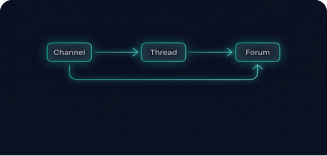
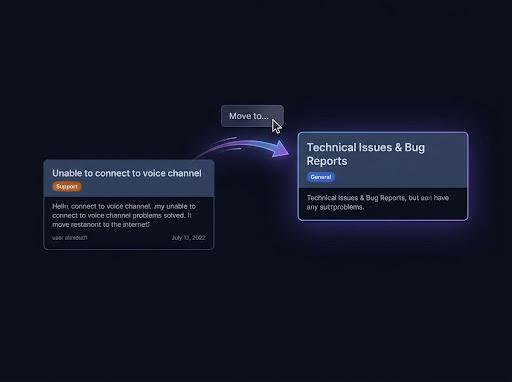
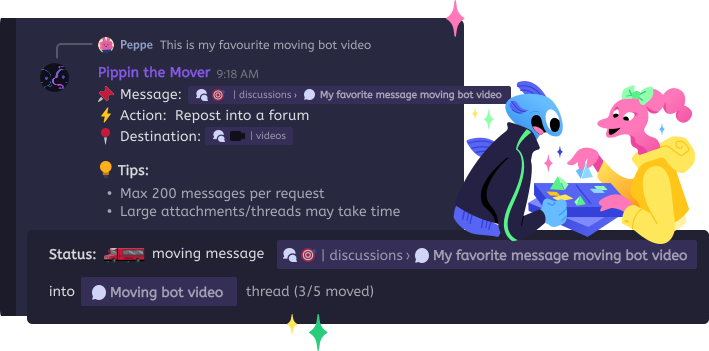
What Pippin can move
Messages and ranges, threads, forum posts, and private threads. Each works as a source and as a destination. Move messages, move a thread, or move a forum post. The docs cover moving a thread or forum post.
Discord message mover bot
Pippin is a Discord bot that moves messages, threads, forum posts, and private threads between channels. It keeps the author's name, avatar, media, and emoji reactions. You start a move with right-click, then Apps, then Move. Pippin has a free plan.
Messages and ranges, threads, forum posts, and private threads. Each works as a source and as a destination. Move messages, move a thread, or move a forum post. The docs cover moving a thread or forum post.
Only members who were @mentioned in the original message bodies get pinged. Otherwise no one is pinged.
The free plan includes 300 moves per month and 1,000 supercharged moves to start. Quotas reset at midnight UTC on the 1st. See plans and booster moves.
Open the message menu on the message where the move should start. That one command covers a single message, a range, a thread, and a forum post.
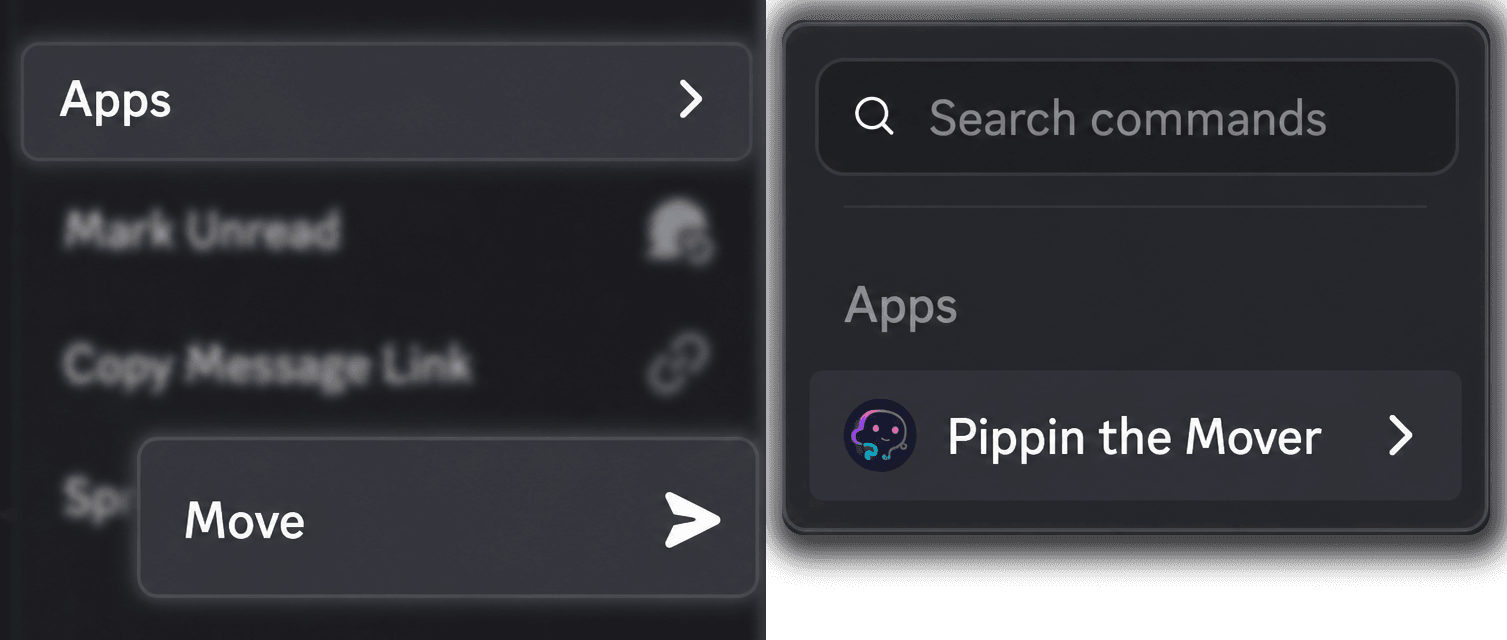
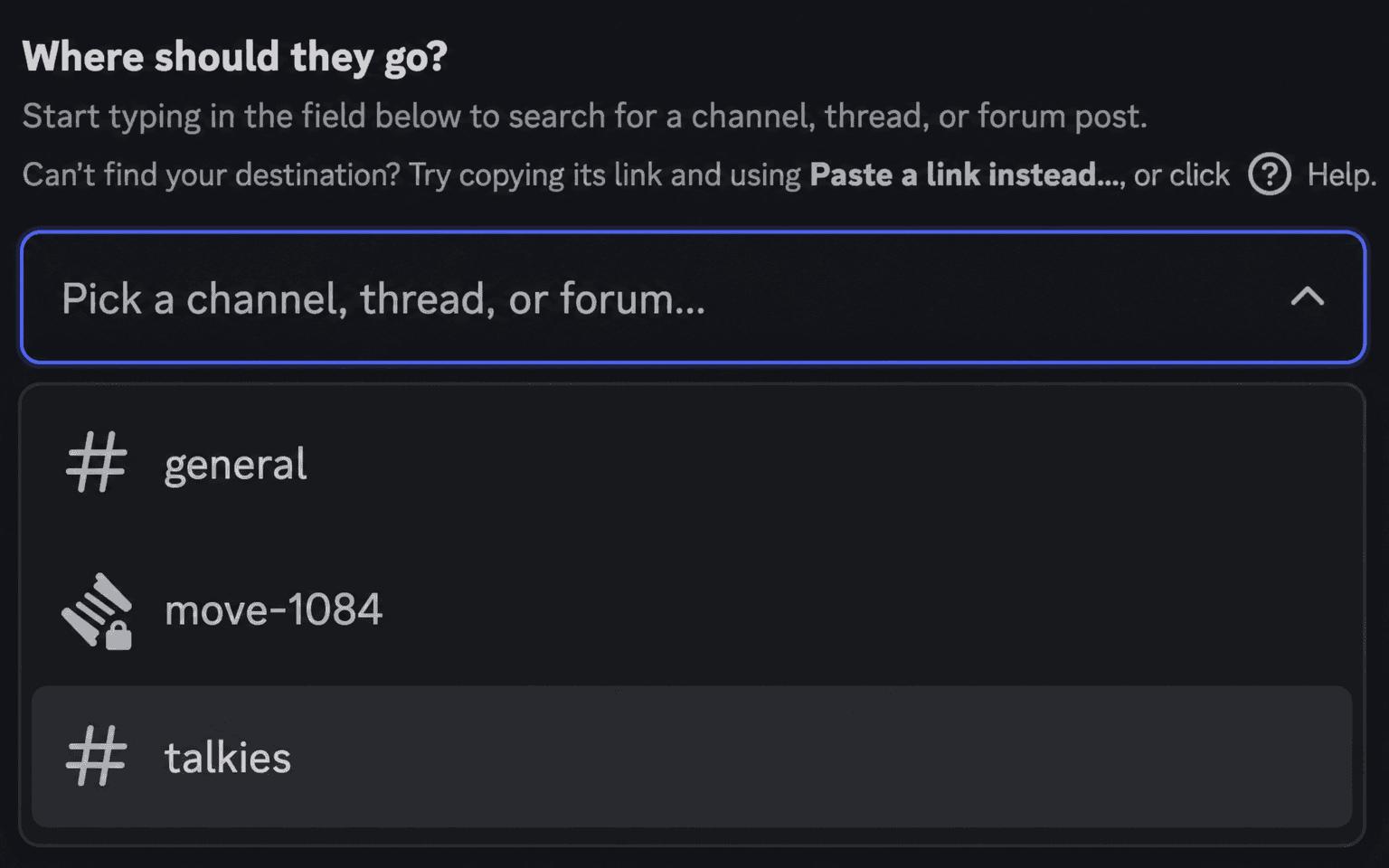
Search for a channel, thread, or forum, or paste a Discord link. A regular channel can stay flat or become a new public or private thread. A forum channel becomes a new forum post.
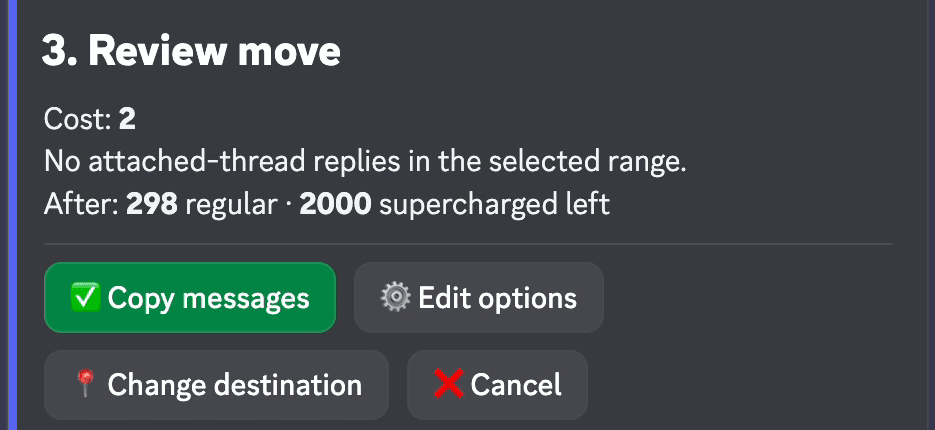
Just this message, a preset, everything below, or a custom amount up to 200. Confirm on Review move. Afterwards Pippin asks whether to keep the originals. If you do not answer, it keeps them.
How Pippin helps
Webhook reposting keeps the original author's server nickname and avatar on every moved message.
Attachments, GIFs, and links stay with the message. Embeds are copied. Stickers are included where Discord allows them.
Reactions are recreated on the moved messages.
Messages stay in order. Discord does not let a bot recreate reply links, so those become ordinary messages in the same order.
A single move handles up to 200 messages. A longer cleanup takes another run.
In a text channel, Pippin opens a private setup thread and deletes it about sixty seconds after a successful move.
Run /movestatus for the tier, monthly usage, and remaining supercharged moves.
The table above is the short version. The best Discord message mover bots page goes through the same sources in more detail.
Join the Pippin Discord to try message, thread, forum-post, and conversation moves in a live test environment with no subscription, no credit card, and no move limits on the support server.
 Join & try for free
Checked 20 October 2026 against each project's public pages. Cells say "not confirmed" where that page did not say. The best Discord message mover bots page has the full table. Looking for Moveer (moving people between voice channels)?
| Bot | Moves | Author kept | Forums | Hosting |
|---|---|---|---|---|
| Pippin | Messages, threads, forum posts, and private threads, as source or destination | Name, avatar, media, and reactions | Yes | Hosted. Free plan |
| Movr | Messages between channels, threads, and forums. Cross-server move is documented | Name, avatar, attachments, and reactions | Forums are listed | Hosted. A free plan exists. Plus ($4.99) and Pro ($9.99) a month are announced, not live |
| msgmover | msgcopy and continuous msgrelay, including across servers. Sending to threads is in beta | Usernames and profile pictures. Reactions are not supported yet | Forums are not supported yet | Self-hosted Red cog. No hosted price |
| EasyThreads | /movethread moves a thread and its message history to another channel | Not confirmed | Forum defaults and panels. Whether a forum post's replies are moved was not confirmed beyond /movethread | Hosted. The site says it is free to use. A separate price was not listed |
| StageHand | /move copy moves a channel, thread, or post. /move server sends it to another server | User messages are reposted by StageHand. Tupperbox and MultiMuse messages are kept | A forum destination can become a new post | Hosted. Price not confirmed |
Yes. Pippin is a hosted Discord bot that moves messages, threads, forum posts, and private threads. Right-click a message, choose Apps → Move, and pick the destination. There is a free plan.
Pippin does. It also moves threads, forum posts, and private threads, and it keeps the author's name, avatar, media, and emoji reactions. A longer comparison is on the best Discord message mover bots page.
Yes. The free plan includes 300 moves per month and 1,000 supercharged moves to start. Monthly quotas reset at midnight UTC on the 1st. Higher monthly limits and booster moves are on the pricing page. You can also try moves with no limit on the Pippin support server.
No. Only members who were @mentioned in the original message bodies get pinged. Otherwise no one is pinged.
Yes. Every move ends with a choice to delete or keep the originals. Keep them and the messages exist in both places, each copy with the author's name and avatar. Pippin can also copy to a channel in another server where it is installed, on every tier.