Discord has no move button
Copy-paste drops the author. A screenshot is not the message. Pippin is the move: one context-menu command, Apps → Move.
Move Discord messages
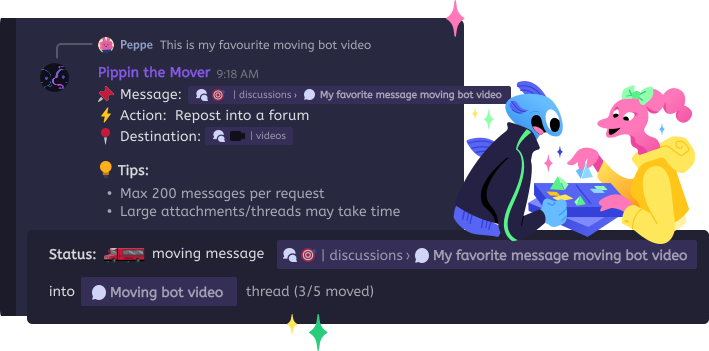
Discord cannot move a message to another channel on its own. Pippin adds that with right-click, then Apps, then Move. You pick the destination — a channel, thread, forum post, or private thread — and how many messages: this one, a preset, everything below, or a custom amount up to 200. Author, avatar, media, and reactions stay with the message.
Copy-paste drops the author. A screenshot is not the message. Pippin is the move: one context-menu command, Apps → Move.
Just this message, a preset, everything below the point where the channel derailed, or a custom amount up to 200.
Pippin shows the last message in the range, then the exact move cost on Review move, before a single message is touched.
No. Discord has no move action for a message, a thread, or a forum post. Moderators usually copy the text, which loses the author, or ask people to repost, which rarely happens.
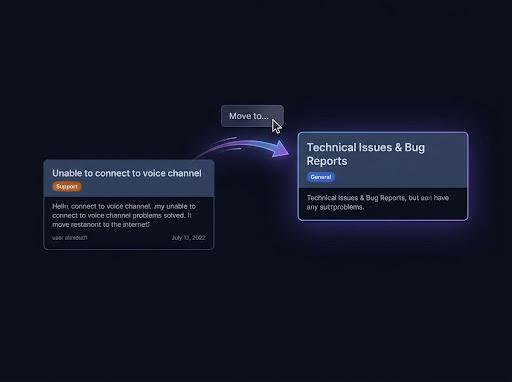
Pippin adds the missing button. Right-click a message, or open ⋯ on mobile, then choose Apps → Move. The same command moves one message, a counted range, a thread, or a forum post.
Scroll to the first message that should move. Right-click it, or open ⋯, then Apps → Move. In a text channel the wizard opens in a private setup thread and deletes that thread about sixty seconds after a successful move.
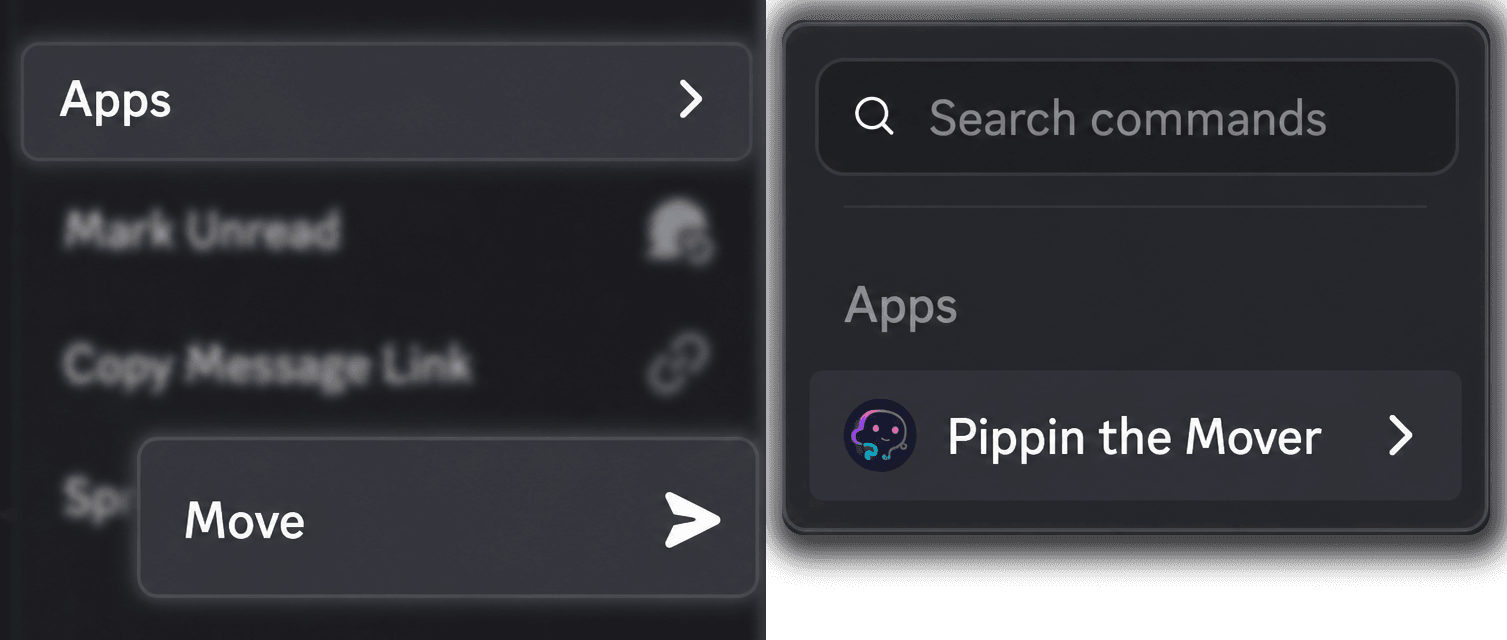
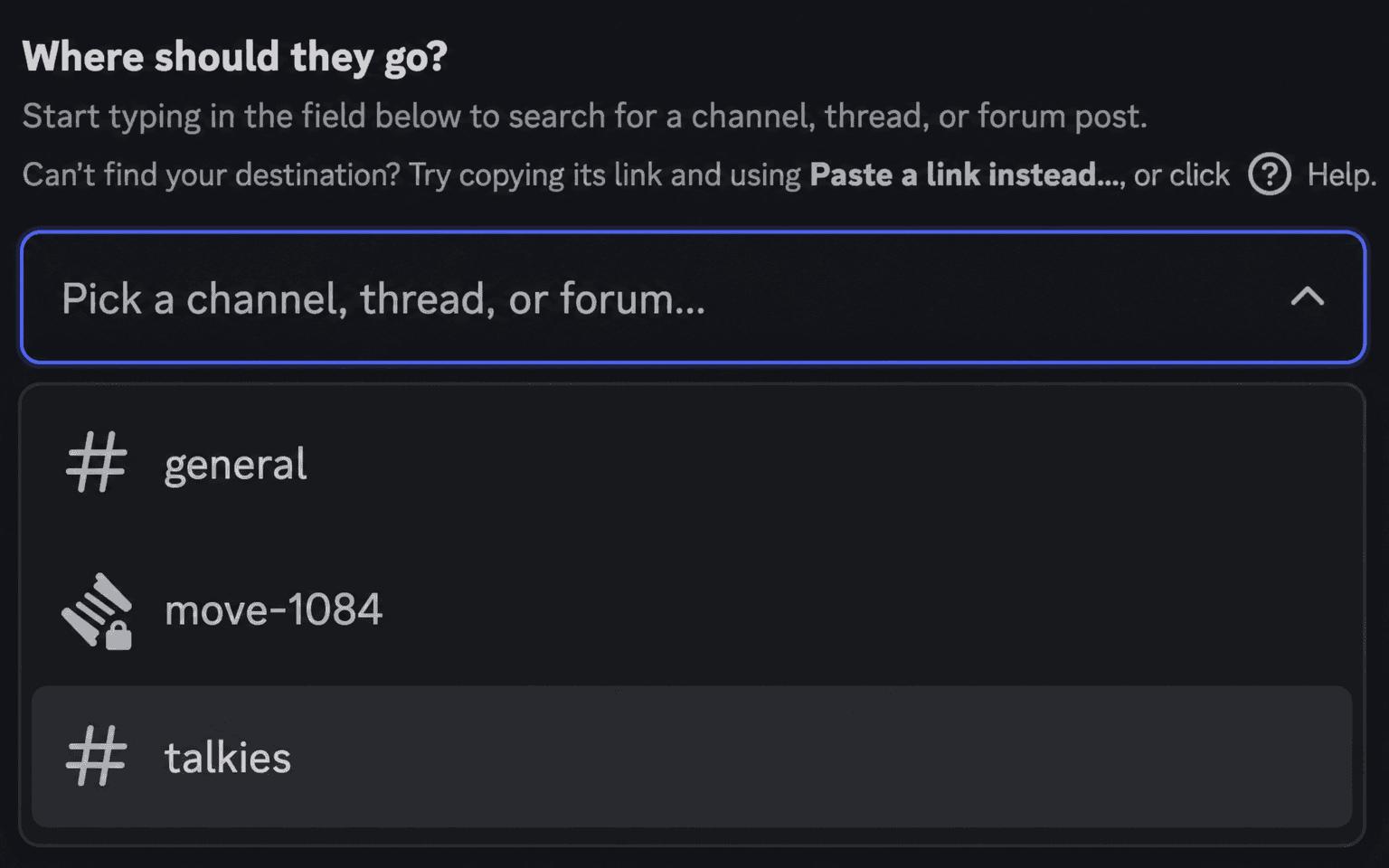
Search for a channel, thread, or forum post, or paste a Discord link. The picker accepts text and announcement channels, existing threads (including private threads), existing forum posts, and forum channels.
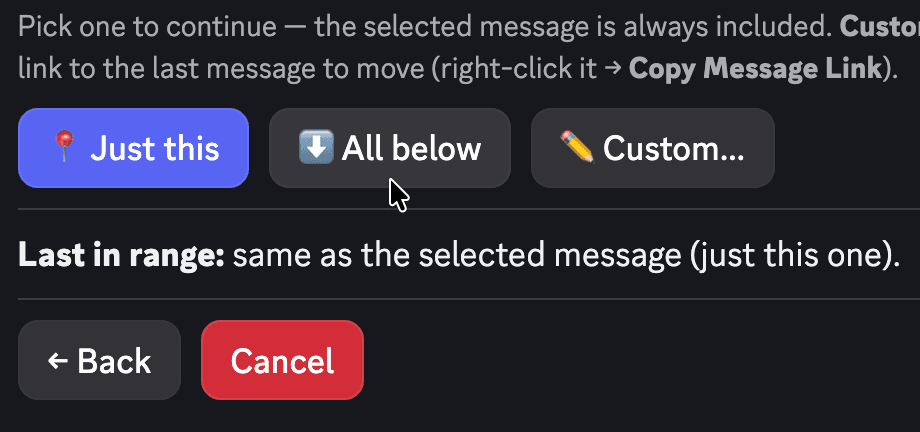
Just this message, a preset, everything below, or a custom amount up to 200. Pippin previews the last message in the range so you can check where the move stops.
The Review move screen shows the cost before anything is copied. A progress bar with Cancel runs during the move. Afterwards Pippin asks whether to keep the originals. If you do not answer, it keeps them.
After you pick a destination, Pippin asks how many messages to take. The choices are just this message, a preset such as this message plus the next few, everything below the message you started from, or a custom amount from 1 to 200.
It previews the last message in that range, with a jump link, so you can check the cut-off. One run handles up to 200 messages. A longer cleanup takes a second run. Each message that is copied counts as one move.
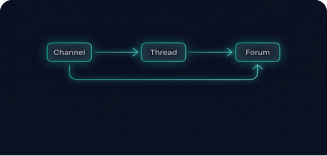
Threads, forum posts, and private threads work as both the source and the destination. Point the wizard at an existing thread or forum post, or pick a channel and wrap the messages in a new public or private thread. A forum channel becomes a new forum post.
Moving into a private thread follows Discord’s own visibility rules: only members of that private thread can read it. The person running the move needs access to both sides, and Pippin checks that before anything moves.
How Pippin helps
Pippin reposts through webhooks, so each moved message shows the original author's server nickname and avatar.
Attachments, GIFs, and links stay with the message. Embeds are copied. Emoji reactions are recreated. Stickers are included where Discord allows them.
Moving a message pings members who were @mentioned in the original message bodies. Otherwise no one is pinged.
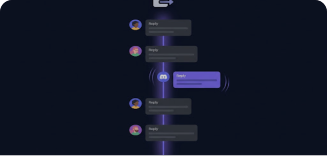
Messages keep their order. Discord does not let a bot recreate reply links, so those arrive as ordinary messages in that same order.
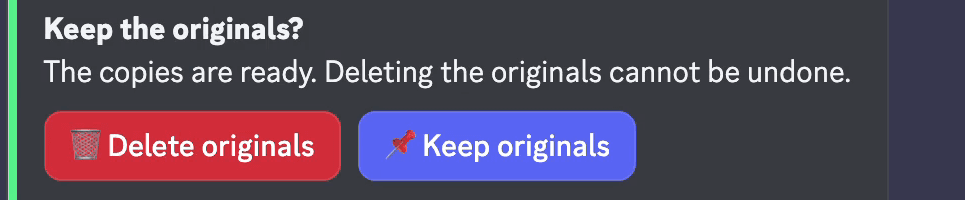
Pippin asks about the originals only after the move succeeds. There is no undo. If you do not answer, the originals stay.
If Discord rejects a sticker, Pippin reposts that message without the sticker instead of failing the move.
A message over 2,000 characters asks you to split it, skip it, or cancel. An oversized attachment asks you to drop it, skip the message, or cancel. You can remember that choice for the rest of the move.
Each message that is copied counts as one move against the server's monthly quota. The free tier includes 300 moves per month, resetting at midnight UTC on the 1st. Creating a new thread or forum post can add one extra move.
Join the Pippin Discord to try message, thread, forum-post, and conversation moves in a live test environment with no subscription, no credit card, and no move limits on the support server.
 Join & try for free
Not with Discord itself. There is no built-in move. Pippin adds one: right-click the message, or open ⋯, then Apps → Move. Choose a channel, thread, forum post, or private thread. The message keeps its author name, avatar, media, and emoji reactions.
Right-click the message and choose Apps → Move. Pick the destination by searching or by pasting a Discord link, choose how many messages, and confirm on the Review move screen. In a text channel the wizard opens in a private setup thread, so the cleanup does not clutter the channel.
Start Move on the first message you want to take. Then choose just that message, a preset count, everything below it, or a custom amount from 1 to 200. Pippin shows the last message in the range before you confirm.
Only members who were @mentioned in the original message bodies get pinged. Otherwise no one is pinged.
After the move succeeds, Pippin asks whether to delete the originals, with Delete and Keep, and it warns that there is no undo. If you do not answer, it keeps them. Keeping them turns the move into a copy.
Yes. Right-click the message and choose Apps → Move cross server, then run the /move-link command it shows in the target server and pick the destination channel there. Pippin must be installed in both servers, and you need access in both. The source server's monthly moves pay for it, on every tier. Afterwards, delete the originals to finish the move, or keep them to leave a copy in both servers.